Prior to uploading your product information from SAP, Categories must be entered into FocusPoint First, then exported to SAP so that products can be mapped to them.
Categories are a way to organize your products on your website. You can add subcategories to give your customers a better user experience.
Example: On your store, if you sell a board game, you may have a category setting like this:
Family Entertainment->Games->Board Games
In this case, Family Entertainment would be your Primary Category, Games would be your Secondary Category, and Board Games would be your Tertiary Category.
You can add your categories by opening the folder for ‘Catalog’ and selecting ‘Categories’.
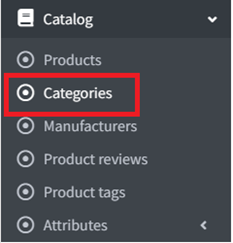
From this page, you need enter your categories manually.
To enter Categories, select ‘Add New’.

In the ‘Add a new category’ screen, you may see ‘Basic’ toggle in the top left corner. If you change this to Advanced, you will see all the options associated with your Category.
Advanced is not required to create and/or assign the category to a Primary or Secondary category.
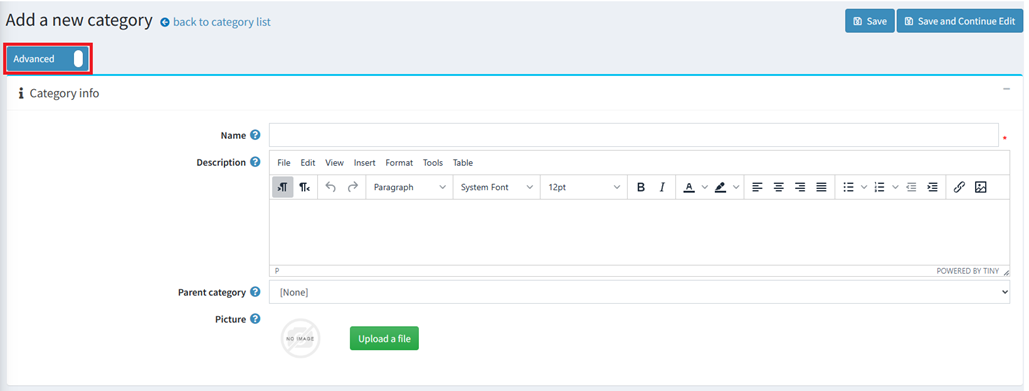
To create the category, you can enter a Name and Save, but you also have the option to add a description or an image and attach it to another category. Click ‘Save’.
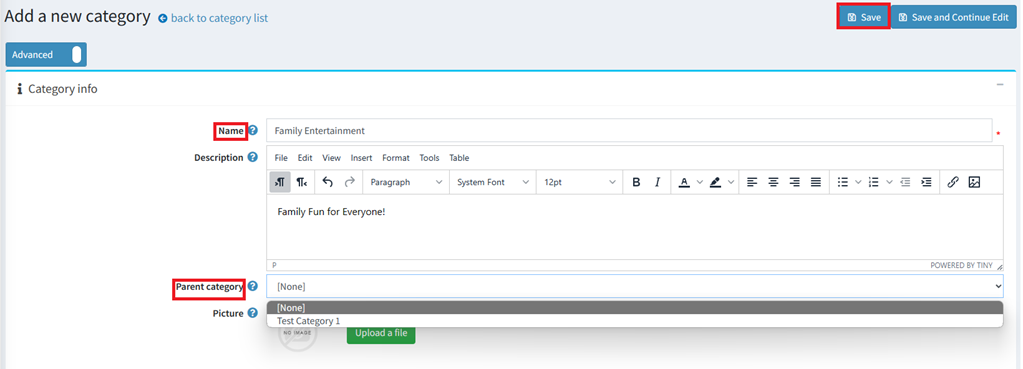
You will then be brought back to the Categories page.
You would need to ‘Export’ your new categories, only after integration is completed and confirmed. This will export your Product Categories to SAP, so that your products can be mapped to them.

If you would like to create a visual of how your categories will look on the site, you can use the below template.
Was this article helpful?
That’s Great!
Thank you for your feedback
Sorry! We couldn't be helpful
Thank you for your feedback
Feedback sent
We appreciate your effort and will try to fix the article